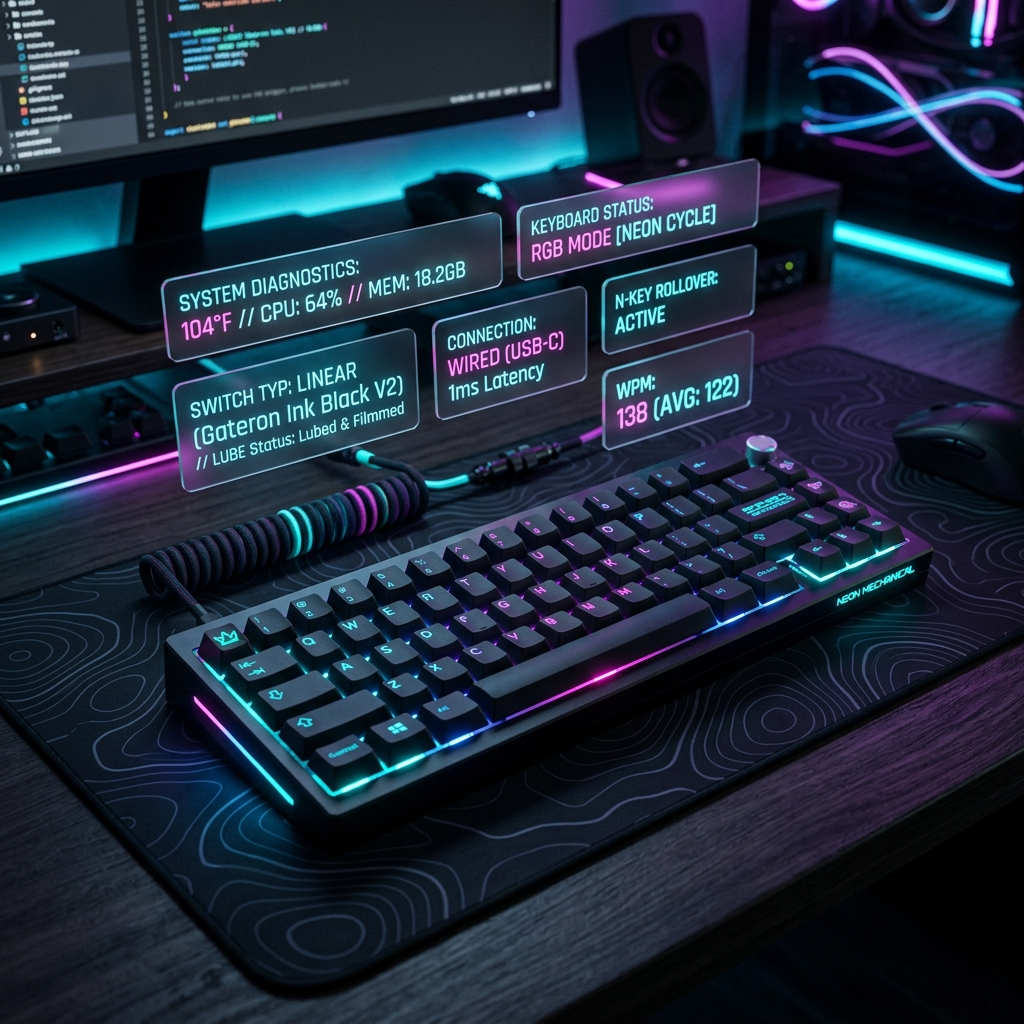
A malfunctioning keyboard is one of the most frustrating hardware issues. Whether you are typing an email, writing code, or gaming, keys that skip presses or double-register (known as key chatter) can completely break your workflow. Fortunately, most keyboard issues are caused by dirt, software settings, or simple keycap blockages and can be fixed at home.
1. Clean the Physical Switch Contacts
Over time, dust, food crumbs, and hair gather under the keycaps, blocking the physical contact points. For mechanical keyboards, use a keycap puller to remove the keycap and blow compressed air into the switch housing. If you have a laptop with membrane keys, use a thin plastic pry tool with extreme care to blow out dust beneath the scissor clips.
2. Resolve Mechanical Key Chatter with Isopropyl Alcohol
If a mechanical keyboard key double-types or skips, the contact leaf inside the switch is likely oxidized or dirty. Unplug your keyboard, apply 1-2 drops of 99% Isopropyl Alcohol directly into the switch stem (press down the stem and drip it inside), press the key rapidly 50 times to distribute the alcohol, and let it dry for 30 minutes before plugging it back in.
3. Adjust Software Debounce and Repeat Rates
Sometimes the hardware is fine, but the operating system settings are triggering double typing. In Windows, search for "Keyboard" settings in the Control Panel and adjust the "Repeat delay" to a longer setting. You can also turn on "Filter Keys" to ignore brief, repeated keystrokes if your keyboard switches suffer from key chatter.
Verify Your Hardware Performance Now
Use our client-side diagnostic suite to test and calibrate your device inputs in real-time.