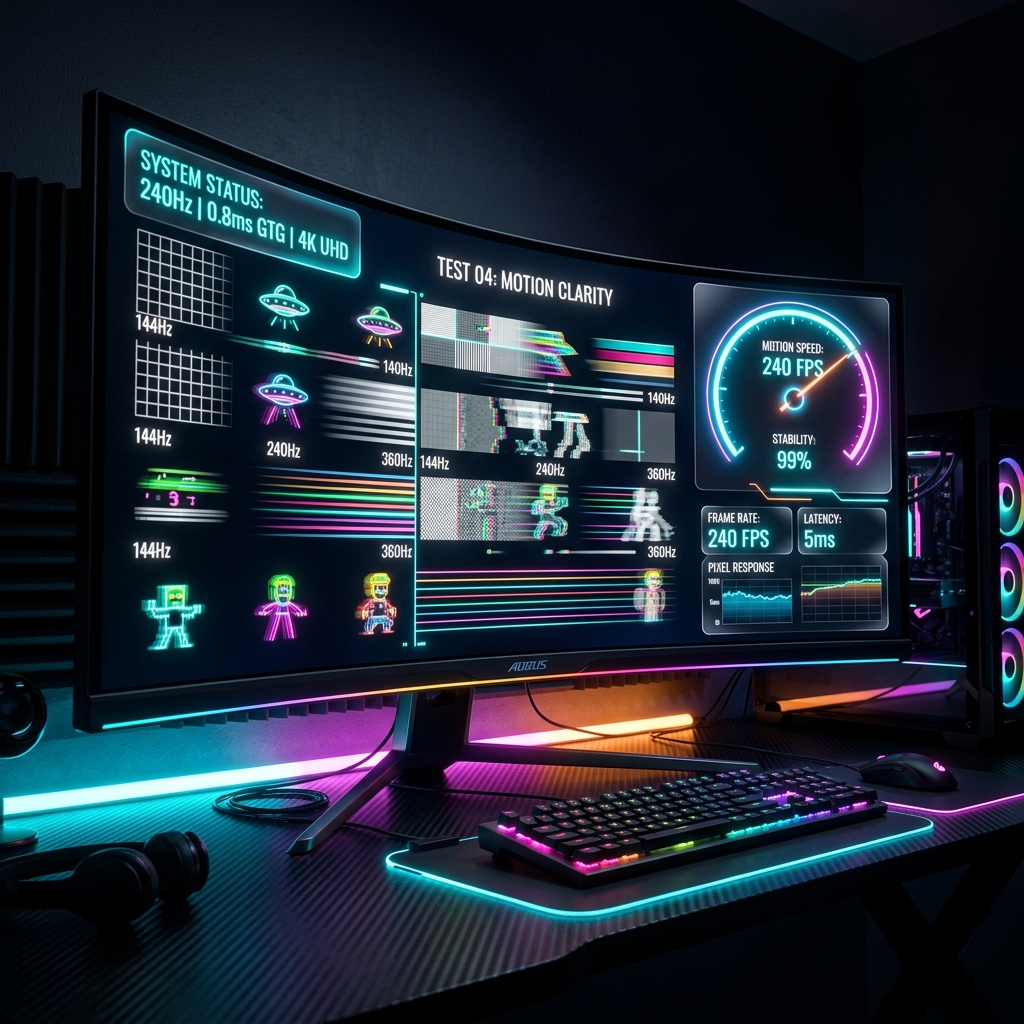
Buying a high refresh rate monitor (144Hz, 240Hz, or 360Hz) is the easiest way to make gaming feel incredibly smooth. However, a surprising number of users plug in their screens and run them at 60Hz for months without realizing it. Here is how to verify and configure your display refresh rates properly.
Upgrading to a high refresh rate gaming monitor (144Hz, 240Hz, 360Hz, or 540Hz OLED) is one of the single most dramatic visual enhancements a PC gamer can make. Cursor movement becomes fluid as water, motion blur dissipates, and tracking fast-moving targets in competitive FPS games becomes effortless.
Yet surveys consistently reveal a shocking statistic: over 25% of gamers who buy a high-refresh-rate monitor run it at 60Hz for months or years without knowing it. Modern operating systems frequently default new display connections to baseline 60Hz safety profiles. Furthermore, using outdated video cables, incorrect port assignments, or mismatched GPU driver resolution profiles silently caps refresh rates.
1. Refresh Rate (Hz) vs Frame Rate (FPS): The Critical Difference
Before diagnosing cable bandwidth, you must understand the distinction between hardware refresh rate and software frame generation:
- Frame Rate (FPS): Generated entirely by your GPU and CPU. It represents how many raw image frames your rendering engine calculates per second.
- Refresh Rate (Hz): Dictated by your physical monitor's display panel controller. It represents how many times per second the liquid crystals, OLED diodes, or phosphors physically illuminate a fresh frame.
If your graphics card renders 300 FPS in Counter-Strike 2, but your monitor is running at 60Hz, your physical eyes are only witnessing 60 frames every second. The remaining 240 frames are discarded, creating tearing artifacts rather than true motion clarity.
2. Cable Bandwidth Limits: HDMI vs DisplayPort Standard Matrix
High refresh rates require billions of bits of raw video data per second. If your cable lacks sufficient bandwidth, the operating system simply will not display high-refresh options in settings:
| Cable Interface | Max Raw Bandwidth | Max 1080p Cap | Max 1440p Cap | Max 4K Cap |
|---|---|---|---|---|
| HDMI 1.4 | 10.2 Gbps | 144 Hz (8-bit) | 75 Hz | 30 Hz |
| HDMI 2.0 | 18.0 Gbps | 240 Hz | 144 Hz | 60 Hz |
| DisplayPort 1.4 (HBR3) | 32.4 Gbps | 360 Hz | 240 Hz | 144 Hz (DSC) |
| HDMI 2.1 (FRL6) | 48.0 Gbps | 540 Hz | 360 Hz | 144 Hz (Native) |
| DisplayPort 2.1 (UHBR20) | 80.0 Gbps | 540 Hz+ | 500 Hz | 240 Hz (Native) |
3. How to Unlock Native High Refresh Rates in Windows & macOS
Follow these sequential steps to ensure your hardware is fully configured for maximum refresh rate:
- Windows Advanced Display Settings: Open Windows Settings > System > Display > Advanced display. Under "Choose a refresh rate", click the dropdown and select the maximum value (e.g., 144Hz, 240Hz). If it only shows 60Hz, proceed to step 2.
- NVIDIA Control Panel "PC" vs "Ultra HD" Trap: Right-click your desktop and open NVIDIA Control Panel > Change resolution. Scroll past the top section labeled "Ultra HD, HD, SD" down to the section titled "PC". Select your native resolution here; this unlocks the high-frequency refresh rate dropdown menu.
- Plug into Dedicated GPU (Not Motherboard): Verify your video cable is connected to your discrete graphics card (NVIDIA GeForce or AMD Radeon) at the bottom rear of your PC case, NOT the motherboard HDMI port near the USB ports. Motherboard outputs use integrated CPU graphics which are often restricted to 60Hz.
- Verify DisplayPort Over HDMI: High-refresh gaming monitors almost always reserve their highest bandwidth for DisplayPort connections. If your monitor included a DisplayPort cable in the box, always prefer DisplayPort over standard HDMI.
4. Detecting Frame Skipping with High-Speed Cameras
Some budget high-refresh monitors suffer from internal scalar defects known as frame skipping. The monitor claims to accept a 144Hz signal, but internally drops every other frame, effectively displaying 72Hz. To test for frame skipping: launch our online display motion benchmark, switch your smartphone camera to Slow-Motion (120fps or 240fps), and record the screen for 5 seconds. If all moving visual squares illuminate sequentially without missing gaps, your panel is running true native high refresh rates.
Verify Your Hardware Performance Now
Use our client-side diagnostic suite to test and calibrate your device inputs in real-time.