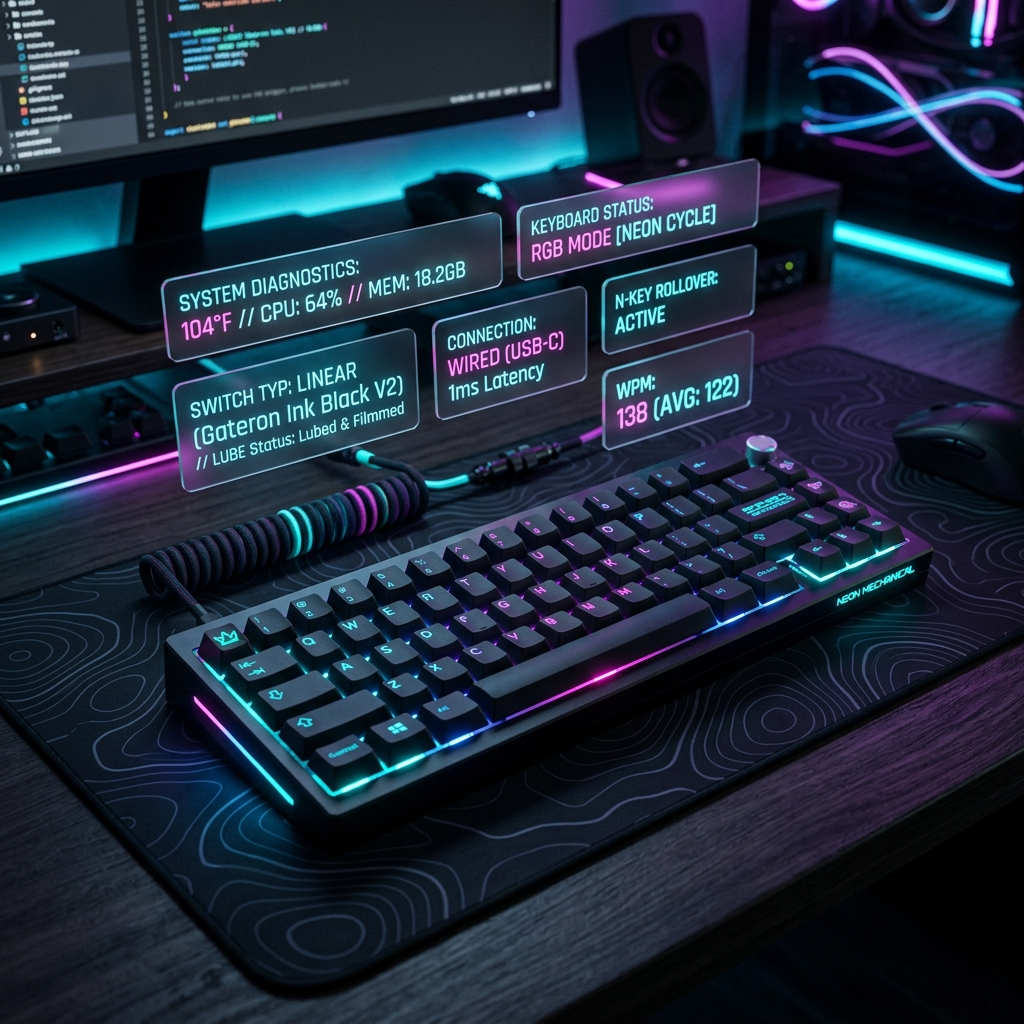
A malfunctioning keyboard is one of the most frustrating hardware issues. Whether you are typing an email, writing code, or gaming, keys that skip presses or double-register (known as key chatter) can completely break your workflow. Fortunately, most keyboard issues are caused by dirt, software settings, or simple keycap blockages and can be fixed at home.
A malfunctioning keyboard is among the most disruptive hardware failures in modern computing. Whether you are typing code, writing an executive document, or playing competitive games, keys that fail to register (dropped keystrokes) or keys that fire twice on a single actuation (key chatter) shatter your focus and speed.
While most users immediately assume the hardware must be discarded, over 85% of keyboard input failures stem from easily remediable issues: contact oxidation, particulate debris blocking optical paths, bent hot-swap contact prongs, or misconfigured OS debounce thresholds. In this comprehensive engineering guide, we walk you through professional diagnostic steps and restoration protocols to restore your keyboard to factory precision.
1. Classifying Keyboard Switch Architecture: Membrane vs Mechanical vs Optical
Before attempting any physical repair, you must identify your keyboard's mechanical actuation technology, as repair techniques that work on mechanical switches can permanently ruin membrane keyboards:
- Membrane & Scissor-Switch Keyboards (Laptops, Apple Magic Keyboard, Office Dells): These utilize three flexible plastic film layers coated with conductive silver traces. A rubber dome collapses under the keycap to bridge top and bottom traces. If a key fails here, the cause is usually liquid spills corroding the silver trace or dirt jammed beneath the plastic scissor linkage.
- Traditional Mechanical Switches (Cherry MX, Gateron, Outemu): Each switch contains independent moving components: a spring, a plastic stem, and two gold-plated copper leaf prongs. Actuation occurs when the stem pushes the prongs into physical contact.
- Optical & Magnetic Hall Effect Switches (Razer Huntsman, Wooting, Keychron HE): These contain no physical electrical contact prongs. Optical switches interrupt an infrared light beam, while magnetic switches measure magnetic flux changes via a Hall sensor on the PCB.
2. Step-by-Step Mechanical Switch Restoration Protocol
Step 1: The High-Pressure Compressed Air Purge
Dust particles, breadcrumbs, and pet hairs frequently lodge between mechanical contact leaves, preventing them from closing their electrical circuit. Disconnect the keyboard from USB power, remove the keycap using a wire keycap puller, depress the switch stem halfway, and direct short bursts of compressed air at a 45-degree angle directly into the housing.
Step 2: 99% Isopropyl Alcohol (IPA) Contact Flush
If a switch continues to double-type (key chatter) or register inconsistently, atmospheric humidity has likely created microscopic oxidation on the copper contact leaf. Unplug the keyboard completely. Place 2–3 drops of high-purity (99%) Isopropyl Alcohol directly inside the depressed switch stem. Immediately cycle the key rapidly 60–80 times to allow the solvent to scrub the contact surfaces. Crucial: Allow at least 30 to 45 minutes for the alcohol to evaporate entirely before plugging the keyboard back in.
Step 3: Inspecting Hot-Swap Sockets for Bent Pins
If you recently customized your keyboard with hot-swap switches, pull the malfunctioning switch out using a dual-prong switch puller. Inspect the two copper pins underneath. In approximately 40% of cases, one of the pins has crumpled against the PCB contact socket during insertion. Carefully straighten the bent pin with fine-point tweezers, re-align the switch perfectly vertical, and press gently until it clicks firmly into the plate.
3. Keyboard Failure Diagnostic & Troubleshooting Matrix
| Observed Symptom | Root Cause | Diagnostic Check | Permanent Solution |
|---|---|---|---|
| Key skips presses intermittently | Leaf spring oxidation or debris | Press key with varying pressure | 99% IPA wash or switch swap |
| Key double-types (Chatter) | Extended contact bounce | InputTest Keyboard Chatter Station | Raise debounce delay to 8ms |
| Entire row or column is dead | Broken PCB trace or cold solder | Multimeter continuity test | Solder jumper wire on PCB matrix |
| Key stuck on screen constantly | Short circuit or liquid spill | Virtual Keydown state listener | Ultrasonic PCB bath & dry |
4. Software & Operating System Calibration
Before assuming a hardware fault, rule out operating system driver glitches:
- Windows HID Keyboard Driver Reinstall: Open Device Manager (devmgmt.msc), expand Keyboards, right-click all "HID Keyboard Device" entries, select Uninstall device, and restart your PC. Windows will refresh clean driver stacks.
- Tune Windows Repeat Delay: Navigate to Windows Control Panel > Keyboard. Drag the Repeat Delay slider one notch towards "Long" and Repeat Rate towards "Fast". This prevents accidental duplicate triggers from aggressive key holding.
- Check Regional Language Keyboard Layouts: If symbols like
@or"output unexpected characters, ensure Windows input language matches your physical keyboard (e.g., US-ANSI vs UK-ISO).
Verify Your Hardware Performance Now
Use our client-side diagnostic suite to test and calibrate your device inputs in real-time.